How to prepare high-res artwork for professional printing in GIMP or Photoshop
Also available in Chinese: 🇹🇼 如何使用GIMP或Photoshop工具做出專業級印刷的高解析圖檔
Content
1. Introduction
Most professional printing companies expect files that are already mastered into a format they can feed directly into their production workflow. They only take files that already contain the final print size, resolution metadata and color profile, ready to go. If you show up with unprepared image files, they will send you back home.
Why do they make it so difficult? It’s because they have an interest in keeping as much liability as possible away from them.
They do not want to receive a random image file and then figure out the correct dimensions, DPI, color mode on their side. Even if you give them a high-res file and tell them simply your desired output dimensions, they are not going to do the resizing for you, because you deliver the files, you take the responsibility. Or even shorter: you author, they print.
This applies especially to printing companies that cater to business clients, poster printing, signage, or other large-format work. Compared to consumer-oriented photo printing services, these companies can be surprisingly affordable, especially for bigger formats. If your artwork is high-resolution and you prepare it correctly, you will get top-notch results without paying premium consumer service prices.
This article walks through a practical workflow for preparing such files in either Photoshop or GIMP.
2. Sourcing artwork in the best possible resolution
The first step is critical: start with the highest-resolution and best-quality source file you can possibly find. The resolution and brilliance of the source file will dictate later how large you can print it, and how it’s going to look on your wall.
If your source file is too small, no amount of authoring or AI upscaling will magically turn it into a great large-format print. You cannot invent detail that was never there in the first place.
When I am sourcing artwork, I try to verify whether a bigger version exists before I commit to mastering a file. Tips:
| Website | Description |
|---|---|
| Wikimedia Commons | Wikimedia Commons is a database behind Wikipedia. It includes many high-res scans of public domain artworks, for example. When viewing an image on Wikipedia or Wikimedia Commons, you may look at a downsamples version. On the image page, find the “Original size” link to download the best-available quality that Wikimedia has to offer. |
| TinEye | Upload a picture or paste a link to a picture and find other sources for the same picture, sorted by resolution. Sometimes, the highest possible resolution is not the best source, as some websites or blogs may have upscaled the picture from a poor source. Compare results not only by resolution, but also visually. Zoom in, compare pixels. |
| Google Image Search | Google has a “reverse image search” which works just like TinEye, but with a more cluttered interface. While TinEye only searches for exact duplicates of your file, Google may also find images that are just similar thematically. I usually use TinEye before I use Google, but there have been instances where I was able to find something with Google that TinEye couldn’t find. |
| PICRYL | A public-domain media search engine that aggregates images from many institutional sources. |
| Library of Congress | American source for historical photographs, posters, prints, maps, and other archival material. |
| Open-access museum collections | Many museums now publish high-resolution downloads directly from artwork pages. A good example is the National Gallery of Art, which offers free open-access image downloads from object pages. |
When you found the best possible image, make sure to save it correctly.
- Don’t take screenshots. Screenshots will only capture the output resolution of your screen, never the full image file.
- Instead, right click the image and select “Save to disk” or similar.
Summary:
- Collect potential artwork over time from various sources.
- Use reverse image search like TinEye to find the best possible publicly available source for the desired artwork.
- Save and organize your files.
3. Measuring, organizing and renaming files
Before touching Photoshop or GIMP, decide exactly how large each artwork should be printed. Use a measuring tape and determine the final real-world dimensions as precisely as possible. Do not guess. If you are planning a wall layout, measure the actual space. If you are replacing an existing frame, measure the visible print area, not just the outer frame.
Once you know the target size, organize your source files so that your naming already reflects the intended output. This does not resize or resample anything yet. It simply gives you a clean structure for working.
A naming pattern like this is useful:
artwork-title_50x70cm_matte.jpgartwork-title_30x40cm_glossy.jpg
This kind of naming makes your workflow much easier later. At a glance, you can see:
- which artwork it is
- the intended print size
- the planned finish
Later, we will add the DPI number to the filename after mastering.
4. Quick crash course on DPI
DPI means dots per inch. The term is often used interchangeably with PPI, pixels per inch, or resolution per inch.
DPI tells the printer how densely your image data should be placed across the physical print size. How many pixels per inch. One inch is 2.54 centimeters, but that’s not relevant here. You won’t need to actually imagine how different DPI resolutions might look on paper – we will just pick the highest possible DPI that both your source files and the printer’s process can support.
For the printing process discussed here, the common target values are:
- 100 DPI for larger posters where viewing distance is greater.
- 150 DPI for posters where you still want strong detail at normal viewing distance.
- 300 DPI for photo printing or smaller prints that will be viewed up close.
Typically, poster prints are offered at either 100 DPI or 150 DPI, while photo printing uses different paper and a different printing process (different machines), with the most common resolution here being 300 DPI.
When moving from your high-res source files to a final DPI number, there will be some downsampling, i.e. you will discard some information from the original. The goal is to make this loss become as small as possible, and to never upscale, because upscaling does not create real detail, it just stretches out what you have and makes it look weird.
5. Can I use AI for upscaling?
If your source material is very low resolution and you absolutely cannot find a better file, then a generative upscaling tool, such as Topaz Gigapixel AI, is a possibility. But I wouldn’t expect too much, no matter how advanced the technology has become.
The result depends heavily on what kind of picture we are talking about. Abstract art with geometric shapes usually can be upscaled quite well with the right kind of models. But even then, you will run into artifacts and inconsistencies.
Example:
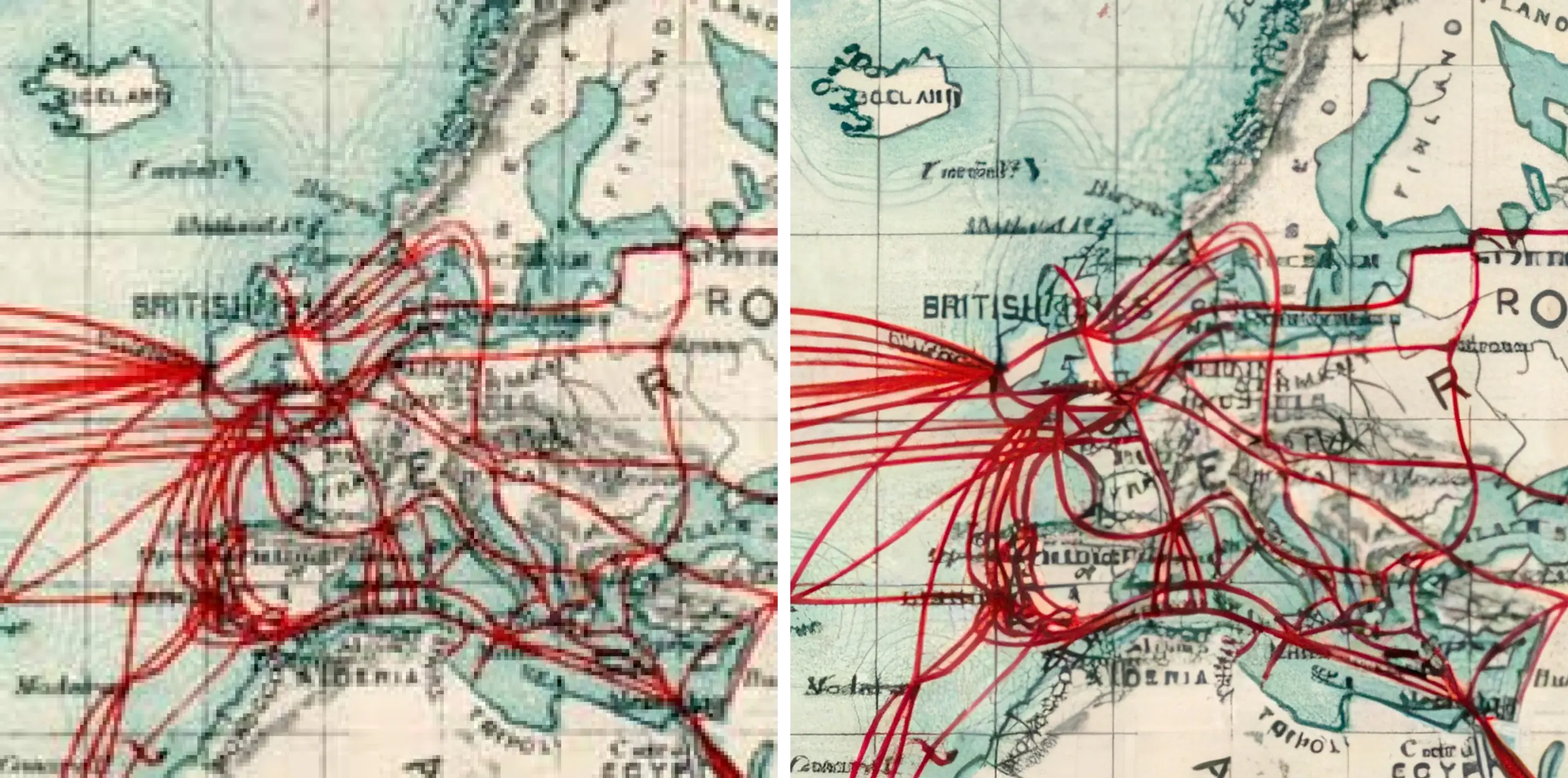
This example is a part of a 1901 map of undersea telegraph cables. The left version shows the best available scan that can currently be found online. Someone needs to go back to that archive and make a new scan…
Right side shows an attempt at AI upscaling with a model that is optimized for artwork (not the standard photography model). If you zoom in, you can see that the red cables actually upscale very well, because the algorithm can easily guess their geometric intention (straight lines and predictable bezier curves). Text however, for example the “ICELAND” country name in the top left, is garbled. The original scan just didn’t have sufficient resolution to render these letters. Geographical features like the mountain ranges of Norway and Eastern Europe also look weird. Coastlines look sharp, mountains look blurry, the whole image just doesn’t look right.
To continue, low-resolution photography will generally look fake when upscaled. And even if it doesn’t look fake – it is. It just won’t be the picture that the artist intended – it won’t be true to the model or subject.
Artworks based on computer-generated graphics may fare better, but it depends on the image.
In most situations, the better solution is simply to print smaller (perhaps postcard format) or pick some other artwork that is available in higher resolution.
6. Decide on matte or glossy early
Decide on the finish before you master the files, and reflect that choice in the filename. This keeps everything organized and prevents confusion later when you place the order.
As a hobby photographer, I appreciate that glossy prints can be desirable, especially well for artworks with strong contrast, blacks and highlights, to make them pop.
However, in my experience, matte prints are usually the safer long-term option, especially in countries with high average humidity. Humidity and temperature swings will cause glossy posters to warp more over time. Matte tends to age more gracefully in those conditions.
My rule of thumb for non-framed prints:
- Choose matte by default.
- Consider glossy mainly for relatively small prints, for example around 30 cm in length.
However, if you plan to seal a print behind framed glass, the calculus changes, and glossy becomes a safe option for large prints as well.
7. Mastering the files in GIMP or Photoshop
Once your source files are organized and you know the intended dimensions, finish, and target DPI, you can start mastering the files properly. I demonstrate this process in two software solutions:
| Adobe Photoshop | Available for Windows and MacOS. Requires a subscription payment. |
| GIMP – GNU Image Manipulation Program | Available for Windows, MacOS and Linux. Free of charge and open source. GIMP is my recommendation for anyone who only does occasional photo editing and mastering. For anyone who does not need a fully-featured productivity suite. I also use it at work for tutorials and technical documentation. |
Notice: in this article, I use centimeters for measuring length. If you use imperial units, just pick the inches option wherever this article tells you to pick centimeters. The rest of the steps are the same.
Photoshop: Step-by-step instructions
Photoshop has a native CMYK workflow. The basic idea is to convert the file to CMYK first, then set the physical print size and resolution.
- Open the picture.
- Go to Image > Mode > CMYK Color.
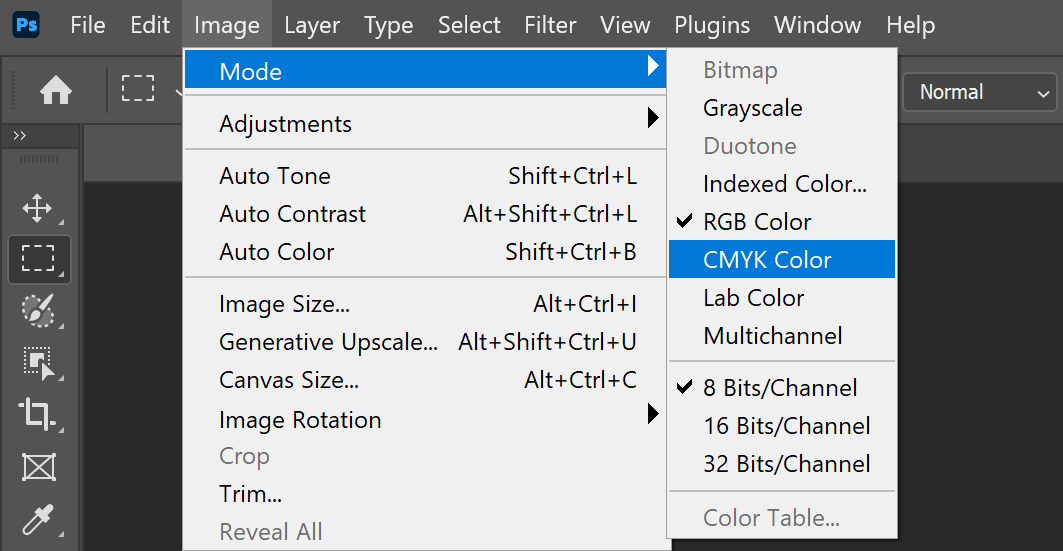
- Photoshop will show a notice indicating which CMYK profile it chose exactly. Confirm.
- Go to Image > Image Size.
- Change the unit from pixels to centimeters.
- Enter your target print size.
- Set the resolution to the intended value in pixels/inch, usually 100 or 150.
Now pay attention to the image size information at the top of the dialog. That gives you a quick sense of whether your chosen settings are realistic for the source image.
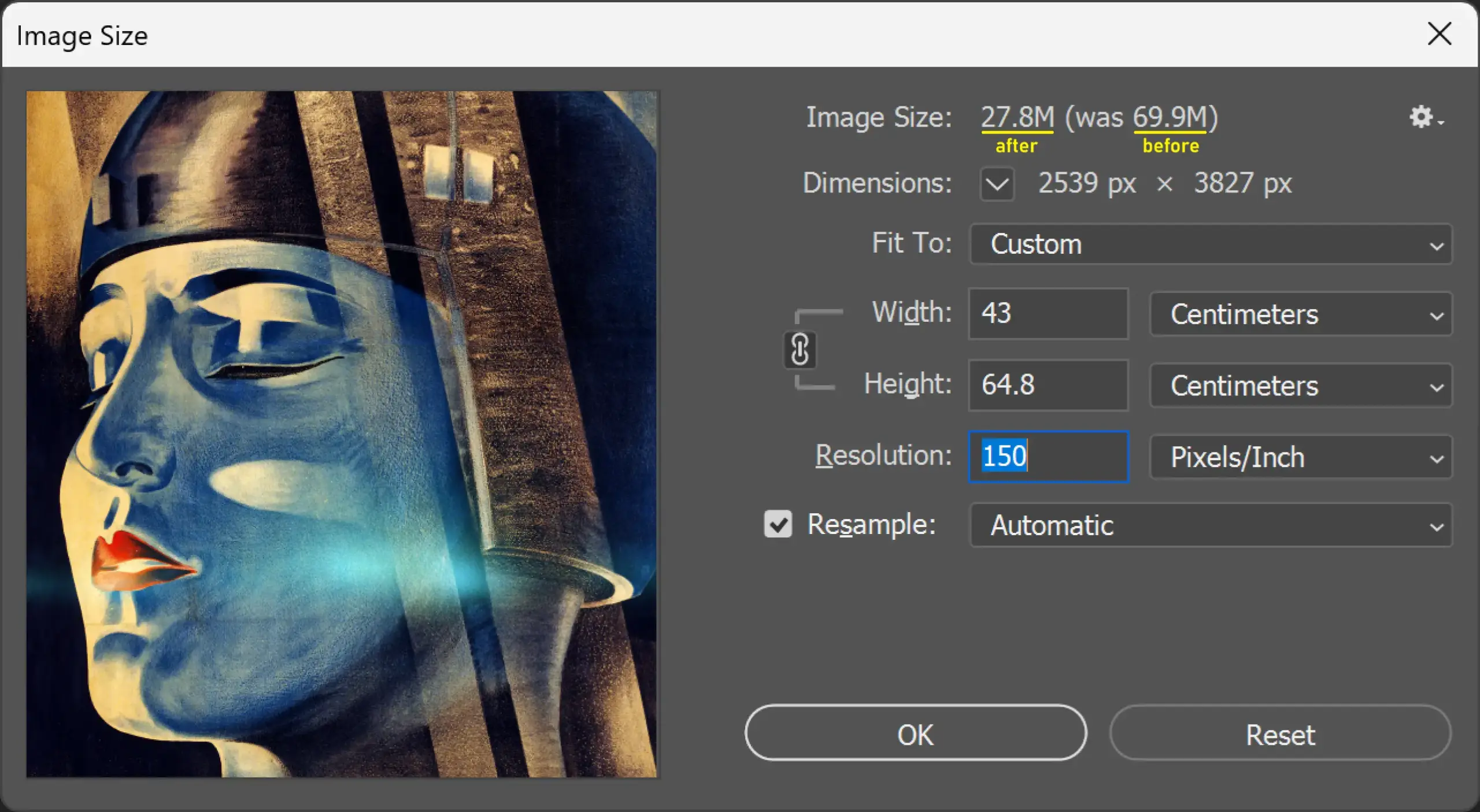
Photoshop shows the image pixel size in “M”, which stands for the image’s uncompressed memory size, basically megabytes in RAM. It’s an unusual metric and it’s not identical to “Megapixel”, but we can still use it to derive the image’s before/after resolution change.
- If the image size after scaling is smaller than before, you can still increase the DPI.
- If the new image size would become bigger than the source, you need to decrease the DPI.
| ⚠️ Comparing the pixel resolution before/after scaling is the core logic behind preparing print files properly. The final resolution must be equal or smaller than the input resolution – otherwise you’d be doing upscaling, which is not recommended. |
Now, it’s time to save.
- Go to File > Save As.
- Create a subfolder called psd.
- Choose Photoshop file format.
- Add the DPI value to the filename: example:
artwork-title_50x70cm_matte_150dpi.psd
At this step, you could also choose a different CMYK-capable output format such as TIFF. But professional printing companies will most likely use Photoshop internally anyway, so I would just use Photoshop’s native file format for convenience.
GIMP: Step-by-step instructions
In GIMP (GNU Image Manipulation Program) the process is pretty much the same, but in slightly different order. Again, we will set target DPI and physical dimensions, compare pixel resolutions before and after, then export. Converting to CMYK happens during export.
- Open the image.
For some pictures, GIMP may now ask if you want to keep the embedded color profile. Choose “Keep”.
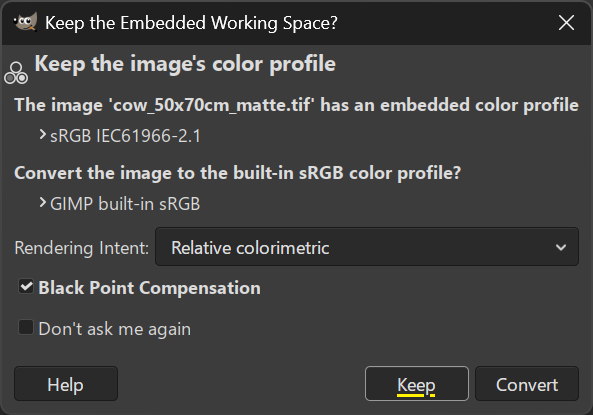
- Go to Image > Scale Image.
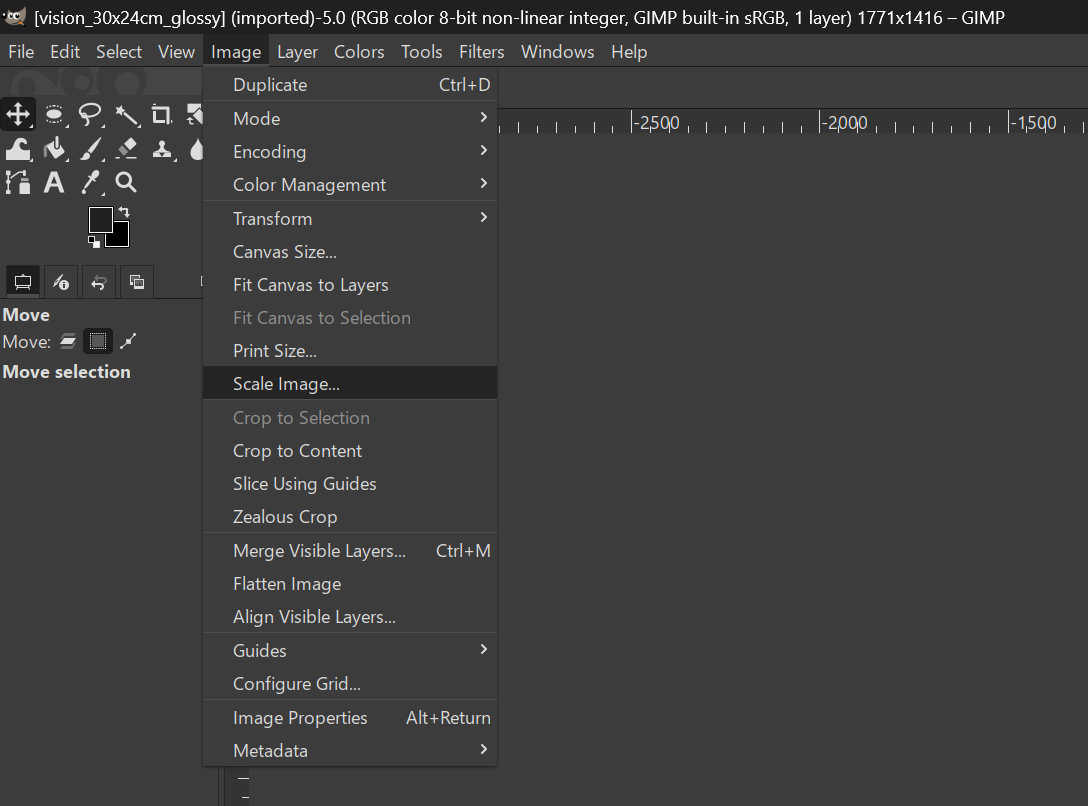
- Set the X resolution and Y resolution to 150 first.
- Then change the image size unit to centimeters.
- Enter your target print dimensions.
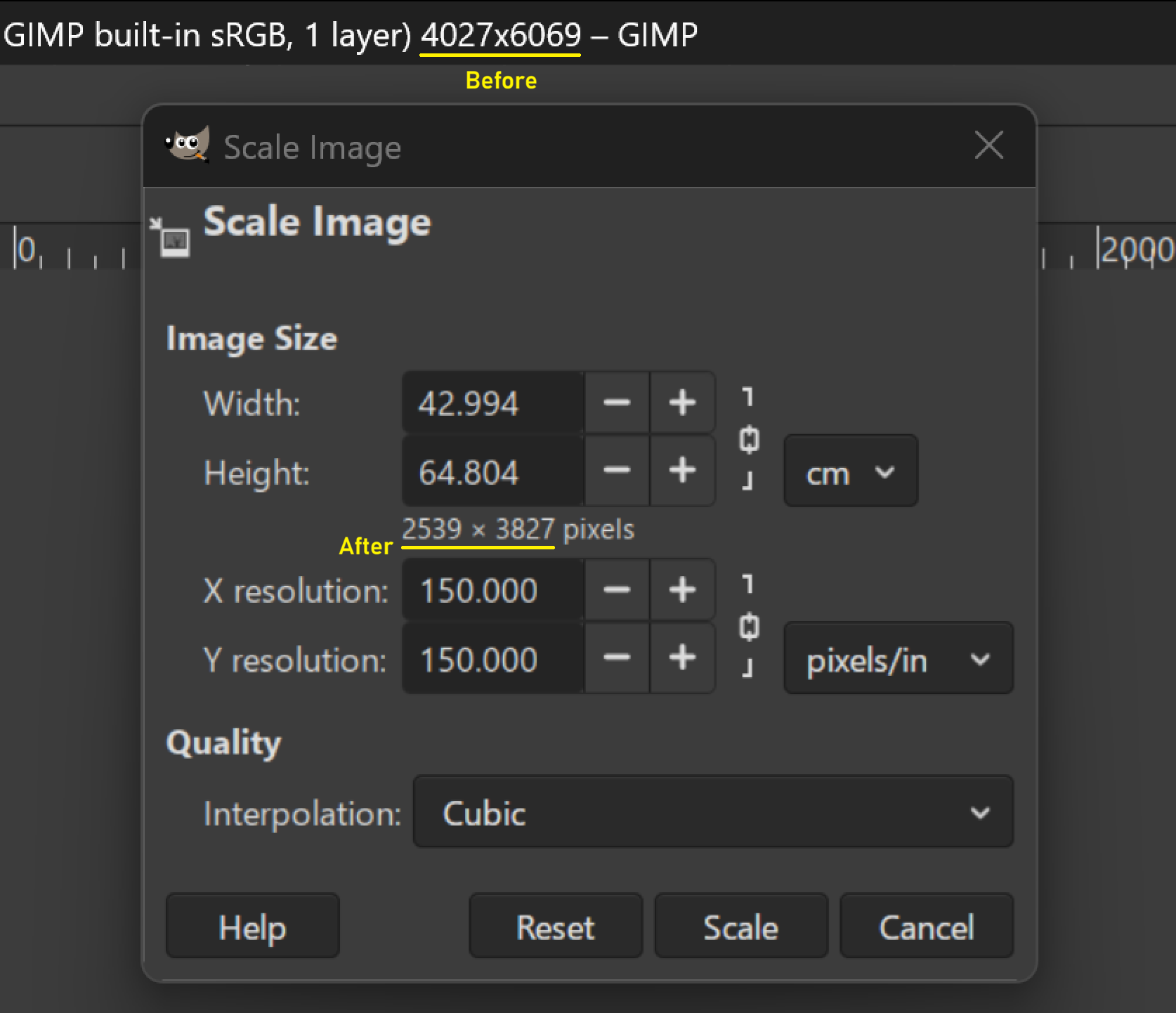
As in Photoshop, you now need to judge whether the chosen settings are appropriate for the source material. GIMP gives you useful clues here:
- The title area of the GIMP window shows the source resolution.
- The text below the dimension selector shows the resolution after scaling.
Use that comparison to decide whether the file is being pushed too far.
- If the after resolution is smaller than the before resolution, you can increase DPI.
- If the final resolution is bigger than the source resolution, you should decrease DPI.
| ⚠️ Comparing the pixel resolution before/after scaling is the core logic behind preparing print files properly. The final resolution must be equal or smaller than the input resolution – otherwise you’d be doing upscaling, which is not recommended. |
After that, export the file:
- Go to File > Export As
- Create a subfolder called tiff
- Change the file extension to .tiff
- Add the DPI information to the filename, example:
artwork-title_50x70cm_matte_150dpi.tiff
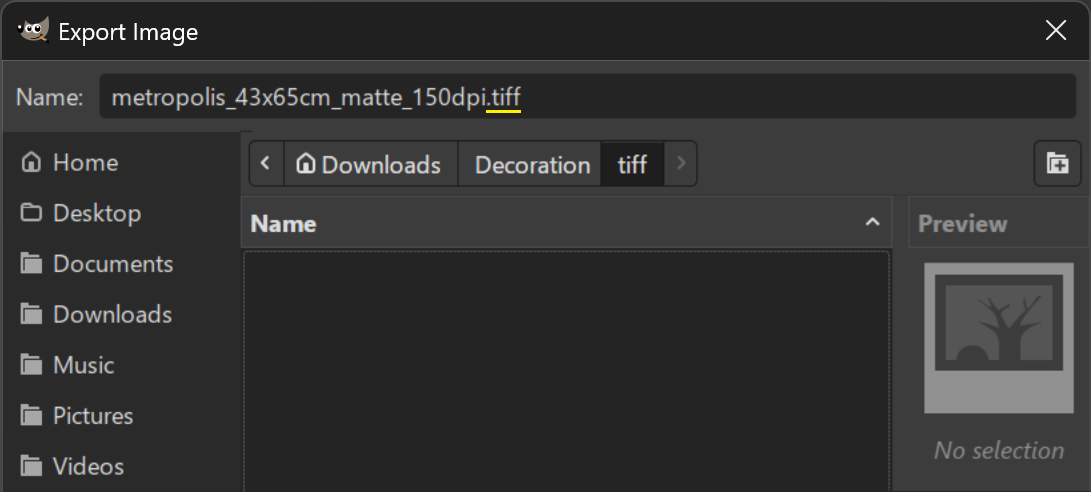
In GIMP, the export format is determined by the extension in the filename. That means if write a filename that ends on .tiff, GIMP will open the TIFF export dialog.
From there:
- After you wrote the appropriate filename ending on
.tiff, press Enter. - GIMP will open the “Export Image as TIFF” dialog.
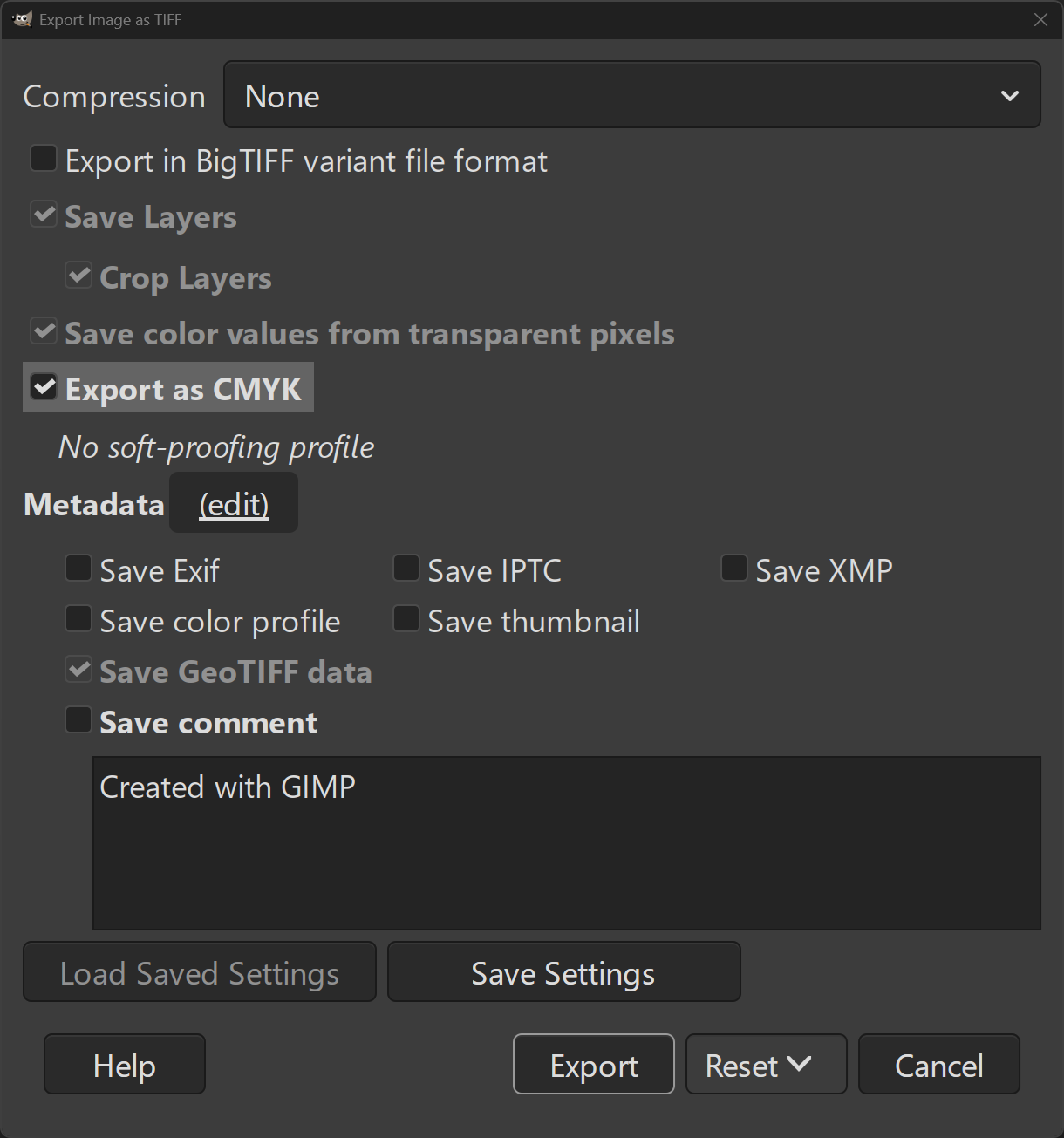
- Important: Enable Export as CMYK.
- Confirm by clicking on Export.
That gives you a TIFF file in a print-oriented format, with the intended dimensions and resolution embedded.
8. Tip: when in doubt, save multiple versions
If your source image is strong enough to support 300 DPI at the target dimensions, but you are not sure if the printing company supports 300 DPI for this format, I would suggest saving two versions:
- one version at 150 DPI
- one version at 300 DPI
That way you can ask the print shop which process they would suggest for that specific artwork and size.
9. Alternative: How to set DPI without resizing pixel dimensions
In the previous sections, we freely chose the physical print dimensions first and then adjusted DPI and pixel resolution accordingly. That workflow involved some amount of downsampling. The amount of pixels decreased to fit the image into an arbitrary size at a given DPI.
In this alternative approach, we set the DPI only and then let the pixel resolution dictate the final print size. In other words, we accept whatever physical dimensions result from the source image. This method avoids any downsampling: every pixel in your source file will correspond directly to a dot on the printer.
This is recommended for images that do not have an amazing resolution to begin with, where you’d probably want to avoid any further downsampling.
You could calculate this using a pixel-to-DPI calculator, but you can also do it directly and intuitively in your image editing software.
Set DPI without changing pixel dimensions in Photoshop
- Open file and change mode to CMYK.
- Again, open menu Image > Image Size.
- Leave width and height set to Pixels for now.
- Set the resolution (DPI, here in pixels/inc) first to your desired value (e.g. 100, 150 or 300).
At this point, Photoshop will automatically adjust the pixel dimensions. However, we do not want the pixels to change.
- Manually change the pixel dimensions back to their original value.
You can see the original resolution in Photoshop’s status bar at the bottom right of the window. - Once you restore the original pixel dimensions, the Image Size display at the top of the dialog will no longer show a difference between before and after, because no resampling is happening.
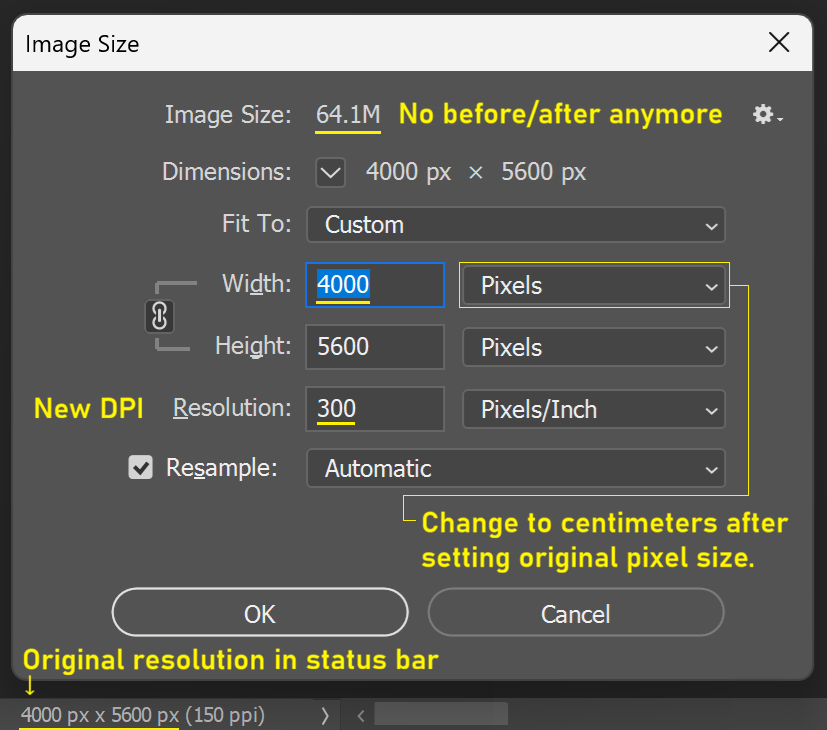
Now you can check the physical print size:
- Change the unit from Pixels to Centimeters in the width/height dropdown.
- Photoshop will now display the physical print size that corresponds to your current DPI setting.
Ask yourself:
- Does this print size make sense?
- Does it fit the space where you plan to hang the artwork?
If the print size is too large, increase the DPI value and repeat the process:
- switch width back to Pixels
- restore the original pixel dimensions
- then switch back to Centimeters to check the new physical size.
If the print size is too small, decrease the DPI and repeat the same steps.
Once you are satisfied with the result, continue with the normal workflow and save the file as a PSD.
Set DPI without changing pixel dimensions in GIMP
In GIMP, the GNU Image Manipulation Program, the process is much easier because GIMP provides a separate Print Size tool that shows the physical dimensions without changing the pixel resolution.
- Open the image.
- Go to Image > Print Size.
- Set the X resolution to your desired DPI value.
- Change the unit from mm to cm.
GIMP will now display the physical print size that corresponds to your chosen DPI and the image’s existing pixel dimensions.
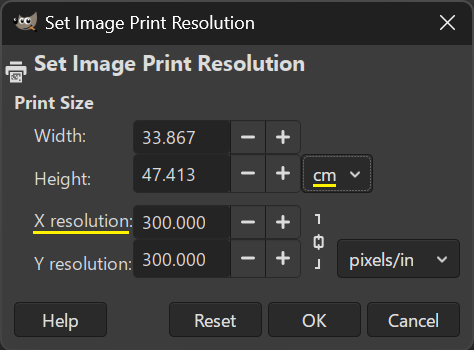
Again, ask yourself:
- Does this print size make sense?
- Does it match the space where the artwork will hang?
If the print size is too large, increase the DPI.
If it is too small, decrease the DPI.
Once you are satisfied with the result, follow the normal steps to export the image as a TIFF file, and make sure to enable Export as CMYK during the export process.
10. Special case: importing PDF files for mastering
Your print shop can print PDF files directly, provided they are already set to the desired physical dimensions which, most likely, they are not. Most PDF files are just set to “A4” or “US Letter” page sizes.
Editing PDF files directly would introduce additional software such as Adobe Illustrator, which is beyond the scope of this article. Instead, I will show you how to import a PDF to Photoshop or GIMP and apply the same mastering logic to them. This should give you a pixel-perfect result, equal to printing the PDF directly at the printer.
Why are PDFs so different?
By default, PDF source files are vector-based. That means they can scale losslessly when rasterized on import. So if the PDF really is based on text and vector art, you can usually choose the target dimensions and DPI freely.
PDFs can also embedd rasterized photography between text and vector art. In these cases, there will be some lossy scaling involved, but you have to break some eggs to make an omelette.
How does this process differ from normal image scaling?
When trying to open a PDF file in GIMP or Photoshop, you will see an import dialog. The import step lets you create pixels from vectors – and you can freely define how many pixels you want. We will do the final DPI scaling already in this step, instead of resizing the image after import.
Import PDFs in Photoshop
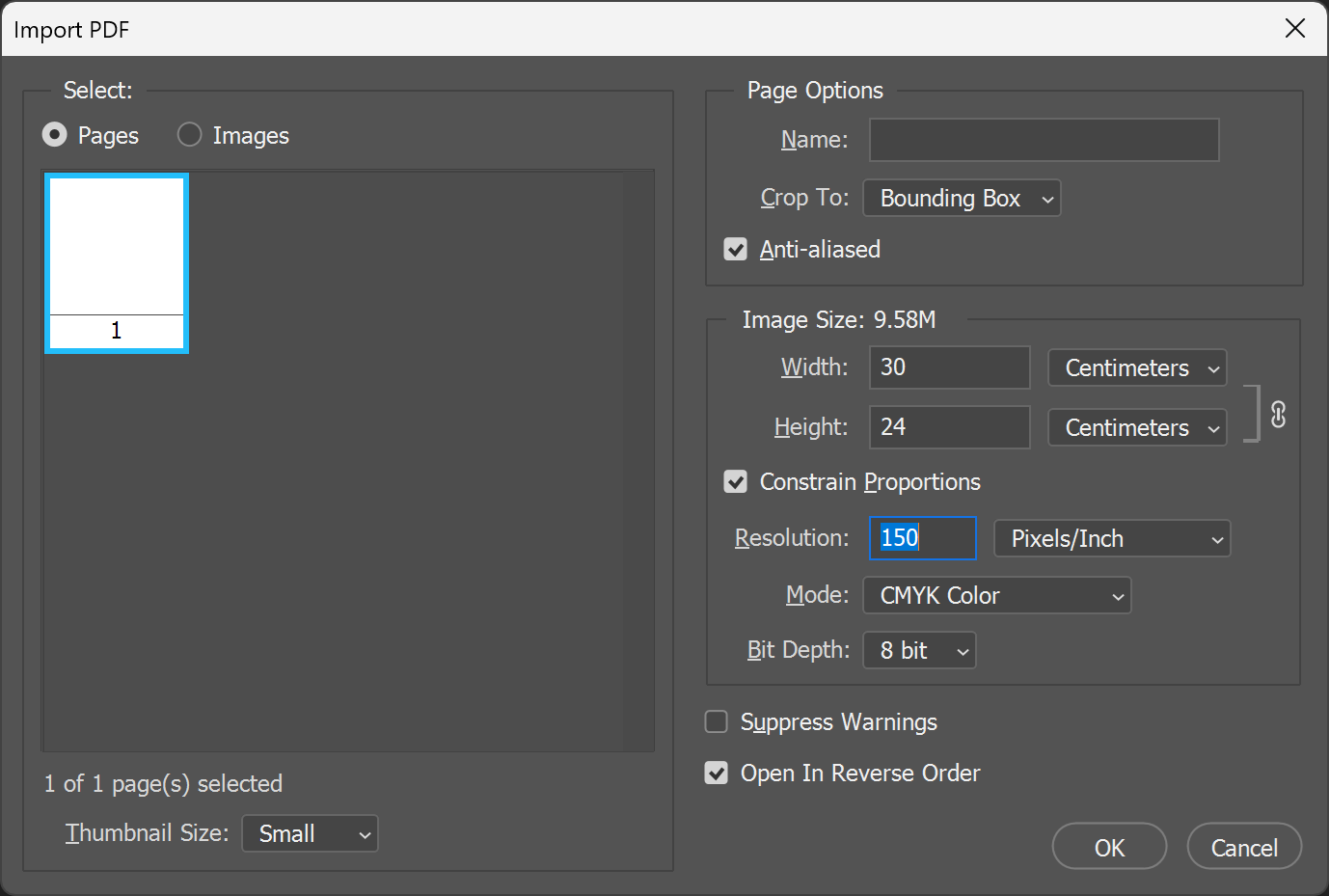
- Open the PDF file in Photoshop.
- In the import dialog, enable Constrain Proportions (this will force height to stay proportional with width and vice versa).
- Change the unit from pixels to centimeters.
- Set the width to the desired target size. The height will update automatically if ‘constrain proportions’ is enabled.
- Set the resolution to 150 or 300 DPI. (Don’t know which to choose? See remarks below.)
- Set mode to CMYK Color.
- Click on OK to open the file.
- Then use File > Save As and follow the same PSD workflow as above.
Import PDFs in GIMP
- Open the PDF file in GIMP.
- In the import dialog, set the resolution to 150 or 300 DPI. (Don’t know which to choose? See remarks below.)
Now, GIMP only offers pixels and inches when setting physical dimensions during PDF import. This is a bit annoying, because we would like to set the physical dimension in centimeters. And you can’t even enter the inches – you can only enter pixels and then see how the inches scale based on your DPI resolution and pixel input.
But that’s OK. We can just convert our target centimeters into inches. You can use Google for this simple calculation.
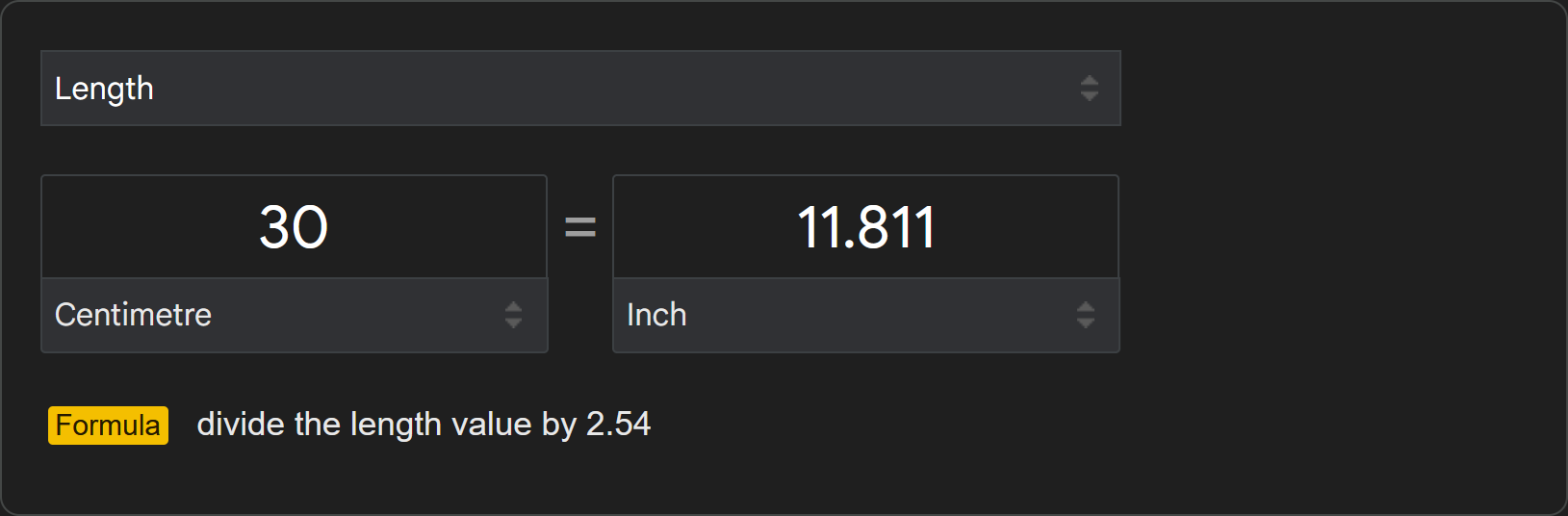
Then, we adjust the pixel width so long until GIMP’s calculated inch value matches our intended print width:
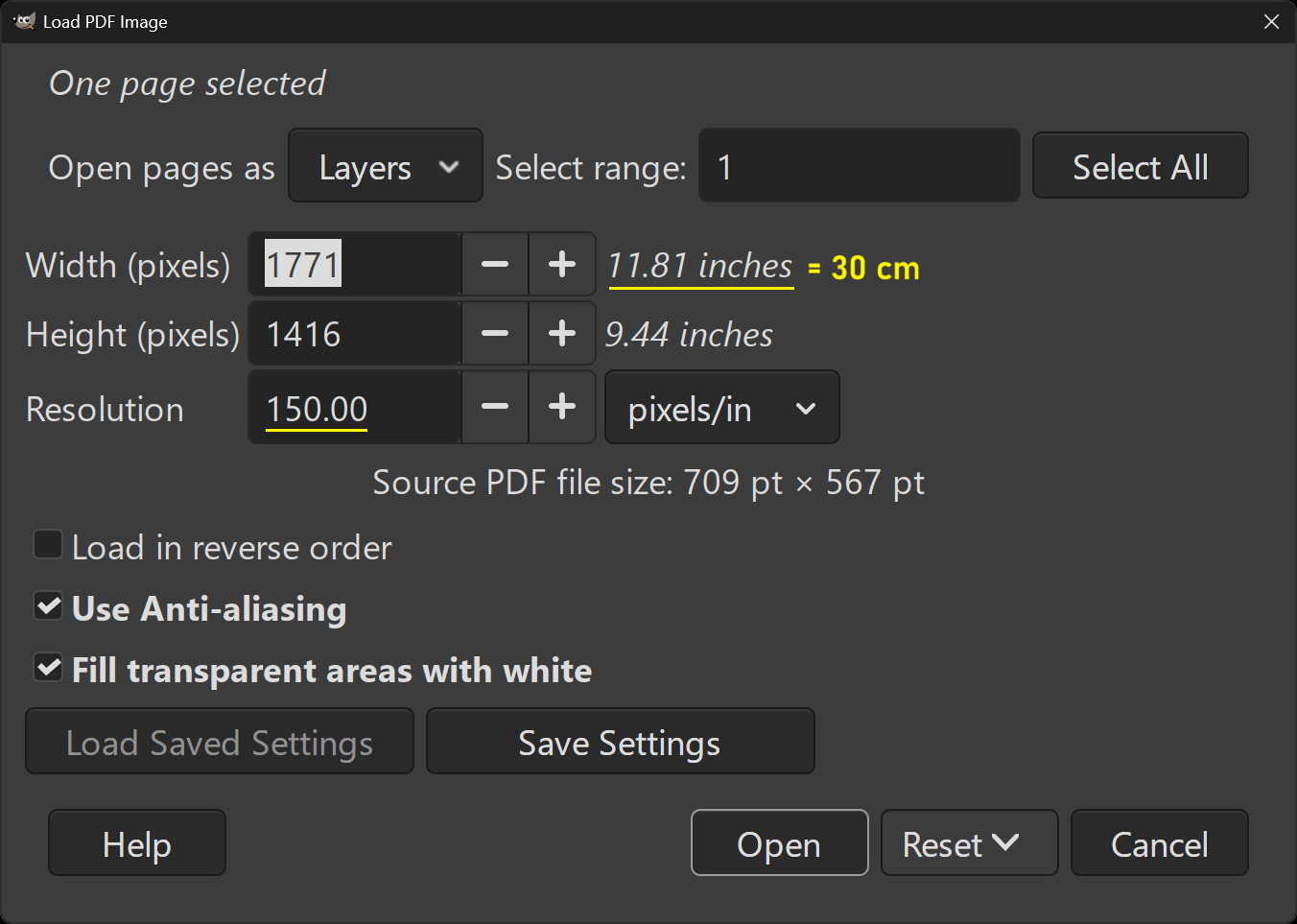
In this process, it is important to set the DPI first, because the inch calculation is based on pixels divided by DPI.
After import:
- Go to File > Export As.
- Export as .tiff and follow the same TIFF export procedure as described in the general section on GIMP above.
- Make sure to enable Export as CMYK during this step.
Which DPI setting should I use for PDF import?
Higher up, during the DPI crash course, I wrote: we will just pick the highest possible DPI that both your source files and the printer’s process can support.
Now, assuming your PDF files are text and vector-based (assuming they do not contain rasterized/pixel-based photography), they can support an unlimited amount of DPI, because vectors can be scaled endlessly.
So, your DPI value is only restricted by what your printer company’s machine can output on a physical basis. That’s usually 150 DPI for large posters, but can also be up to 300 DPI for smaller formats. This brings us back to the previous tip: when in doubt, save multiple versions. Import one PDF in 300 DPI and save/export, then import the same PDF again in 150 DPI, following all the same steps. Present both export files to your printer and ask them which one they can support.
11. Summary
With this workflow, you will give the printer exactly what they need: a file that already has the correct dimensions, the correct DPI, and the correct print-oriented format. All while maintaining the best possible image quality under these given constraints.
Once you understand that principle, the rest becomes only a matter of staying organized and paying attention to what your source material can realistically support.
Start with the best source file you can find, decide on the exact output size early, and then follow the steps so that every setting reflects the intended final print.
If you have any questions or would like to contribute additional tips to this article, please contact me.
This article is licensed under CC BY. 
If this article was helpful to you, please consider to buy me a coffee.
See also: contact information.